
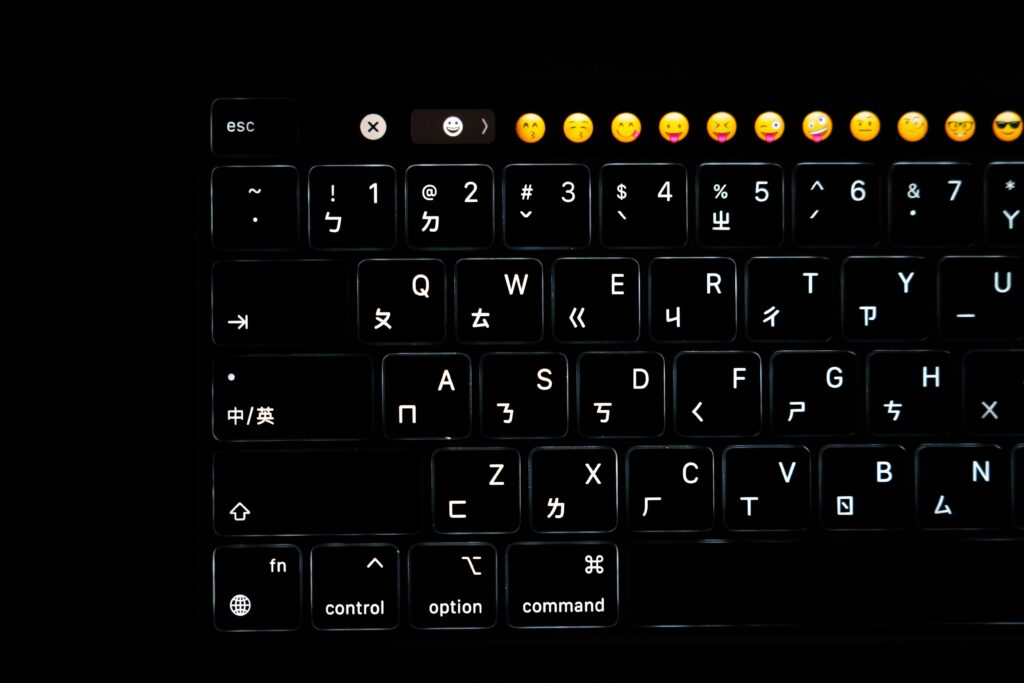
Why Shortcuts Still Matter in 2026
Keyboard shortcuts have stood the test of time, and in 2026, they’re more relevant than ever. Even as voice assistants and AI tools become more advanced, nothing beats the speed and control of a well timed key combination.
Speed and Efficiency Over Clicks
Every click adds up. Whether you’re editing documents, browsing the web, or managing files, keyboard shortcuts eliminate the need for repetitive mouse movement and menu digging.
Navigate and execute tasks in seconds
Reduce wrist strain and screen fatigue
Keep your focus on the workflow not the interface
Productivity That Crosses Platforms
Knowing just a few essential shortcuts can provide an instant productivity boost no matter what system you’re on. These commands are often mirrored between Windows and macOS, which means less friction and more fluidity across environments.
Learn once, apply everywhere: many shortcuts are cross platform
Boost multitasking and minimize interruptions
Build muscle memory for commonly repeated tasks
Still Worth Learning Even in an AI Driven World
AI tools might automate more tasks, but keyboard fluency gives you direct control. When AI falters or context is misunderstood, shortcuts let you stay in command.
Instant control without waiting on prompts
Perfect for offline work or privacy focused scenarios
Complements voice commands and automation, rather than replacing them
The bottom line? Mastering keyboard shortcuts is still one of the simplest ways to work smarter, not harder no matter how much automation evolves.
Universal Shortcuts Everyone Should Know
Some shortcuts are so universal, they’re muscle memory for anyone who spends time on a keyboard. Whether you’re editing a video script, copying marketing stats, or searching a long doc for that one rogue typo these commands are your baseline. They work across Google Docs, email clients, project tools, browsers you name it.
Copy, Paste, Cut
PC: Ctrl + C / V / X
Mac: ⌘ + C / V / X
Copying and pasting is the digital equivalent of breathing. Cut when you’re moving content. Paste when you’re ready to drop it somewhere else. Just don’t forget what’s on your clipboard.
Undo / Redo
PC: Ctrl + Z / Y
Mac: ⌘ + Z / Shift + ⌘ + Z
Made a mistake? Ctrl + Z is the oh no bailout. Want it back? That’s Redo. Fast corrections beat fumbling through menus.
Select All
PC: Ctrl + A
Mac: ⌘ + A
Sometimes you need it all every word, image, or cell. This shortcut grabs the whole thing in one keystroke.
Find (Search in page or doc)
PC: Ctrl + F
Mac: ⌘ + F
Looking for one specific word in a sea of text? This is your laser. Ctrl + F never turns off, and it never misses.
These are foundational for a reason. Learn them once, use them forever.
Shortcuts for Tabs and Browsers

Tabs are the bread and butter of modern browsing. Whether you’re researching, watching videos, or working with web apps, these shortcuts keep you moving without reaching for the mouse.
Open New Tab: Ctrl + T (PC) / ⌘ + T (Mac)
Starts a fresh tab instantly. Great for when you’ve got another rabbit hole to dive into.
Close Tab: Ctrl + W (PC) / ⌘ + W (Mac)
Quickly close out a tab useful when you’ve got ten too many or want to shut down distractions.
Reopen Last Closed Tab: Ctrl + Shift + T (PC) / ⌘ + Shift + T (Mac)
Accidentally closed something important? This brings it back like it never left.
Switch Tabs: Ctrl + Tab or Ctrl + Shift + Tab (PC) / ⌘ + Option + Right or Left Arrow (Mac)
Jump forward or backward through open tabs without lifting your hands off the keyboard.
Once you get used to these, clicking through tabs will feel like walking with your shoelaces tied together.
Screenshot
Taking a screenshot isn’t just useful it’s essential. Whether you’re grabbing a bug report, saving a receipt, or capturing a meme, quick access matters. On PC, hit Windows + Shift + S to open the Snip Tool. You’ll get a crosshair to select exactly what you need. On Macs, Shift + ⌘ + 4 lets you drag and capture a portion, while Shift + ⌘ + 5 opens broader options like full screen or window snips.
Clipboard History
Ever copied something important, then copied something else by accident and lost it? Clipboard history is your safety net. On PC, turn it on first (Settings > System > Clipboard), then access it with Windows + V. You’ll see a list of recent copied items text, images, links and you can pin key entries. Macs don’t have this natively, so you’ll need a third party app like Paste or CopyClip to get similar functionality. It’s a small setup that saves big time.
File and Window Management
When your screen’s cluttered and your hands are already on the keyboard, a few shortcuts can clear the noise fast.
Switch Between Open Apps: Alt + Tab (PC) / ⌘ + Tab (Mac)
This one’s a classic. Jumping between open apps with quick keystrokes beats hunting around with your mouse. Great for multitaskers who live in multiple windows at once.
Minimize Window: Windows + Down Arrow (PC) / ⌘ + M (Mac)
Tidy up fast. Send what you’re not using out of the way without closing it entirely.
Open File Explorer/Finder: Windows + E (PC) / Shift + ⌘ + F (Mac)
Get to your files instantly. No scrolling through your desktop or digging through icons. Just hit the keys and dive in.
These basics might seem small, but stack them together and you start moving like you’re on muscle memory. It’s the digital version of sharpening your tools before getting to work.
Safety First Bonus Tip
Speed is great until it puts your data at risk. If you’re zipping through your day with keyboard shortcuts, you’re already working efficiently. But speed without security is asking for trouble. Think about it: the faster you move, the more you rely on cloud drives, quick logins, and saved credentials. That’s a playground for potential breaches if your devices aren’t locked down.
Set up two factor authentication. Use a password manager. Keep your updates, well, up to date. And don’t assume autofill is your friend especially on shared or public machines. Whether you’re backing up a folder or toggling between virtual desktops, protecting your workflow is just as critical as speeding it up.
Want to work smart and stay safe? Check out Simple Cybersecurity Tips to Keep Your Devices and Accounts Safe for a quick, practical rundown.
No fluff. Just the basics to keep hackers out and momentum in.
 Ask Stevenielero Logan how they got into practical tech tips and you'll probably get a longer answer than you expected. The short version: Stevenielero started doing it, got genuinely hooked, and at some point realized they had accumulated enough hard-won knowledge that it would be a waste not to share it. So they started writing.
What makes Stevenielero worth reading is that they skips the obvious stuff. Nobody needs another surface-level take on Practical Tech Tips, Latest Tech News and Innovations, Software Development Insights. What readers actually want is the nuance — the part that only becomes clear after you've made a few mistakes and figured out why. That's the territory Stevenielero operates in. The writing is direct, occasionally blunt, and always built around what's actually true rather than what sounds good in an article. They has little patience for filler, which means they's pieces tend to be denser with real information than the average post on the same subject.
Stevenielero doesn't write to impress anyone. They writes because they has things to say that they genuinely thinks people should hear. That motivation — basic as it sounds — produces something noticeably different from content written for clicks or word count. Readers pick up on it. The comments on Stevenielero's work tend to reflect that.
Ask Stevenielero Logan how they got into practical tech tips and you'll probably get a longer answer than you expected. The short version: Stevenielero started doing it, got genuinely hooked, and at some point realized they had accumulated enough hard-won knowledge that it would be a waste not to share it. So they started writing.
What makes Stevenielero worth reading is that they skips the obvious stuff. Nobody needs another surface-level take on Practical Tech Tips, Latest Tech News and Innovations, Software Development Insights. What readers actually want is the nuance — the part that only becomes clear after you've made a few mistakes and figured out why. That's the territory Stevenielero operates in. The writing is direct, occasionally blunt, and always built around what's actually true rather than what sounds good in an article. They has little patience for filler, which means they's pieces tend to be denser with real information than the average post on the same subject.
Stevenielero doesn't write to impress anyone. They writes because they has things to say that they genuinely thinks people should hear. That motivation — basic as it sounds — produces something noticeably different from content written for clicks or word count. Readers pick up on it. The comments on Stevenielero's work tend to reflect that.